
People, teams and the org chart
Every organization has a who is who. In Uniffy it is the People page, drawn from the profiles and reporting lines your organization keeps in Uniffy.
Open it from your avatar menu. You get your whole organization as a chart: who reports to whom, and which team each person sits in.
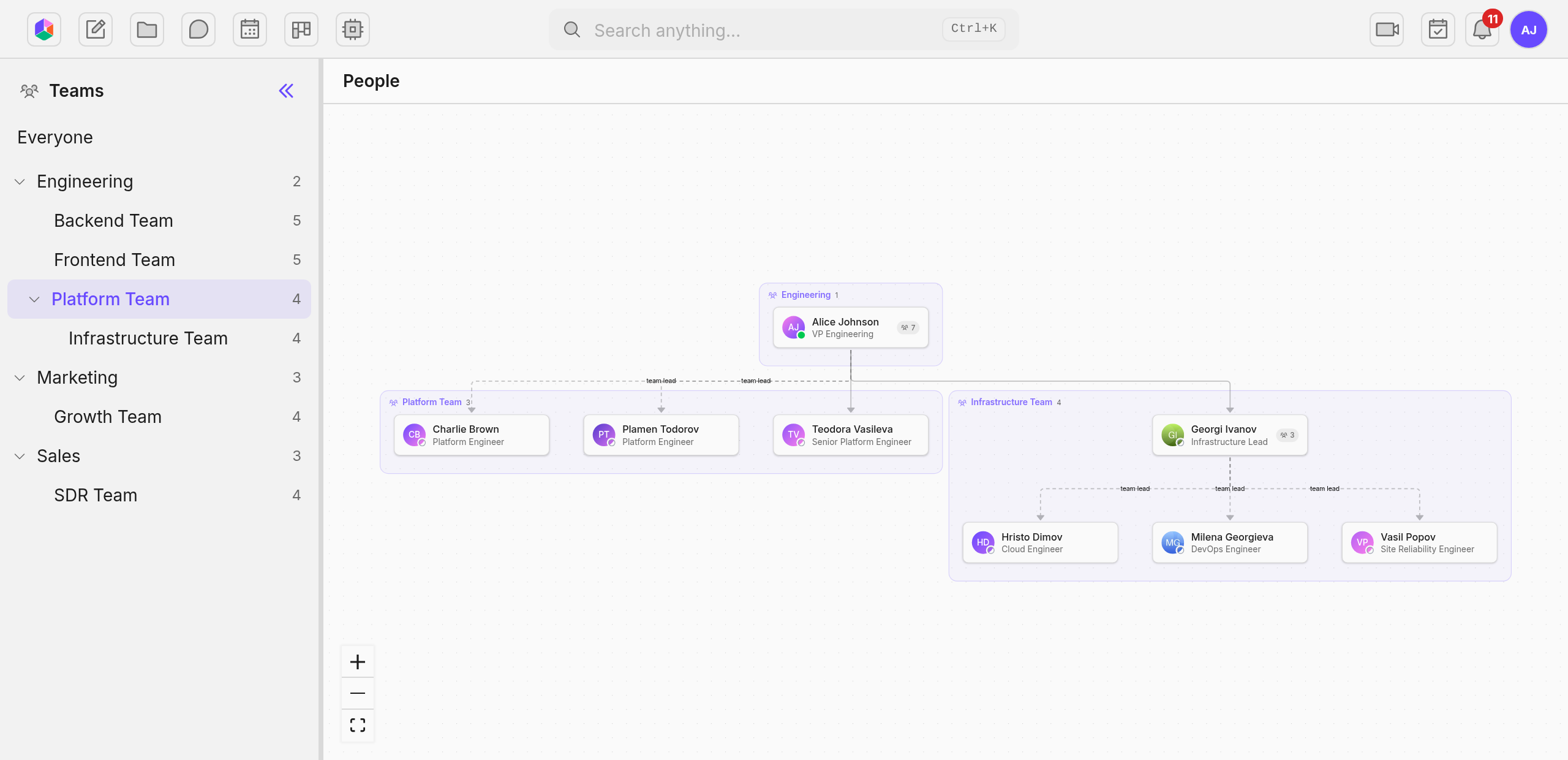
Reading the chart
Section titled “Reading the chart”Solid lines are reporting lines an admin set. Dashed lines are stand ins. When someone has no manager on record, the chart falls back to their team lead, and the dashed line says so.
Teams draw as boxes around their members, nested the way the org is nested. Pick a team in the sidebar to see just that slice of the organization. The rest of the chart gets out of the way.
The number beside a person is how many people sit under them. Click it to fold their branch away, click it again to bring it back. In a very large organization the chart opens the top of the tree and leaves the deeper branches folded, so it stays readable instead of drawing thousands of cards at once. Pick a team when you want one slice.
Hover any person for a quick card with their title, team, local time, and contact details. Click them to open the full profile.
Profiles
Section titled “Profiles”A profile answers what a colleague would ask in the hallway: name and pronouns, title and department, who their manager is and who reports to them, which teams they belong to, how to reach them, and what time it is where they are.
Everything on a profile is visible to everyone in your organization. There are no per field privacy dials to decode. A field someone left empty does not show.
Your own details
Section titled “Your own details”You edit your personal fields in your account settings: phones, timezone, birthday, bio, links, and pronouns. They appear on your profile the moment you save.
Job title, department, office, and manager work differently. Those are facts about the organization, so admins maintain them. If your organization syncs people from a company directory, synced fields show a small lock and update from the directory.
Teams and groups
Section titled “Teams and groups”You will meet two kinds of sets of people in Uniffy, and they are labeled everywhere so you never have to guess.
A team is where you sit. Engineering, Growth, SDR. Teams appear on the chart, on profiles, and in search results next to people’s names.
A group is a sharing list an admin made, like Release Approvers or Incident Response. Groups exist so content can be shared with the right set of people in one move. They carry no org chart meaning.
Both work anywhere you pick people. Share a note with the Engineering team and every member can open it. People who join the team later inherit the access, and people who leave lose it.
Inviting a team to a meeting
Section titled “Inviting a team to a meeting”When you add attendees to a calendar event, the picker shows three labeled sections: people, teams, and groups.
Pick a team and everyone currently in it lands on the invite as an individual attendee. It is a snapshot. Someone who joins the team next week is not added to last week’s event.
Finding people
Section titled “Finding people”Search works on more than names. Type a job title or a department and the right people come back, each result showing their title and team. Mentions of a person anywhere in Uniffy link straight to their profile. Teams show up in search too, and you can mention a team like anything else to link its slice of the chart.
When an admin fixes a title or a manager, every chart, profile, search result, and mention card updates. Ask your current org chart tool when it was last true.